Request Data Access
Select your role below for step-by-step instructions on requesting an ITSO data feed through Bridge Interactive.
Important Information
▼- As the Broker of Record, you must first log in and accept the Bridge terms before REALTORS® in your office can request a feed.
- If you would like approval authority to be delegated to someone else within your office — meaning requests and approvals are executed by them instead of you — please reach out to your Member Association and inform them who it will be.
- Before starting, determine whether you are executing an In-House agreement (your brokerage builds or operates the solution internally) or using an Authorized Technology Provider (ATP) to operate the website or application on your behalf.
- We recommend reviewing the MLS® Rules and MLS® Policies ahead of time. As Broker of Record, you are responsible for ensuring all data feeds operating under your brokerage are used accurately and in full compliance with the applicable rules and policies.
Agreement Walkthrough
Select your agreement type on the right for a visual step-by-step guide.
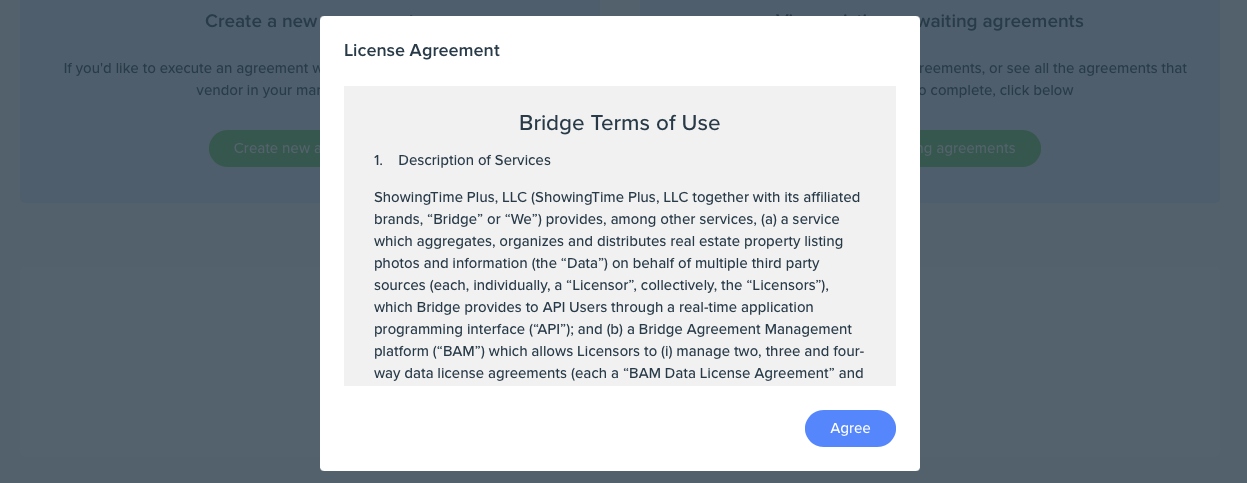
Accept the Bridge Terms of Use
The first time you open Bridge Agreement Manager, you'll be prompted to review and accept the Bridge Terms of Use before you can do anything else. Read through them and click Accept to continue. Keep in mind that each REALTOR® in your office will need to do the same on their own first login before they can submit any requests. Already done this? Skip ahead to Step 2.
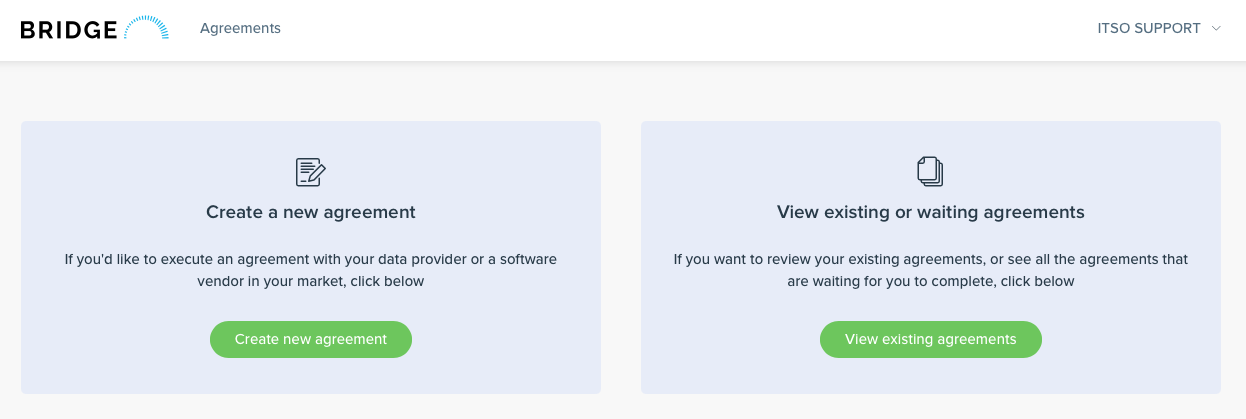
Create a new agreement or review existing ones
After accepting terms you land on the Agreements dashboard. Click Create new agreement to start a new in-house agreement. Use View existing agreements to check the status of anything already in progress or waiting on your action.
Select the ITSO Brokerage Agreement — In-House
Under the Brokerage Agreement category, locate ITSO Brokerage Agreement – inhouse and click Create agreement. Only select this if your brokerage is building or operating the solution with its own staff. If a third-party provider is involved, use the ATP agreement instead.

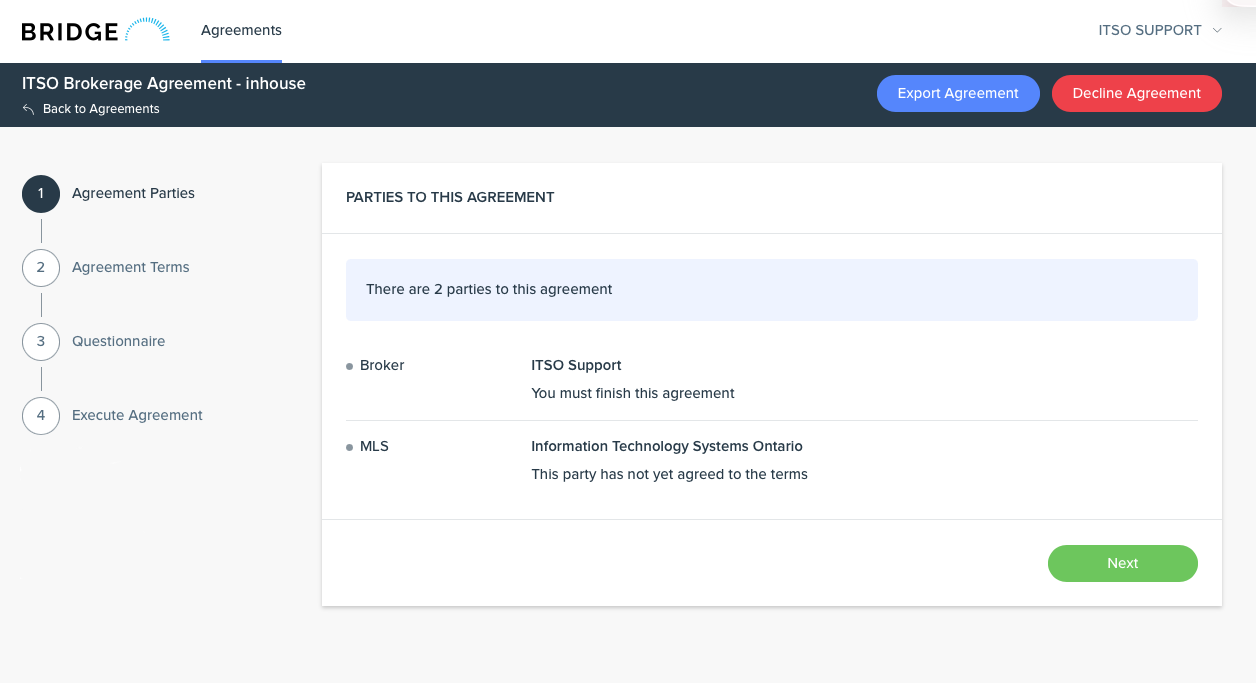
Review the parties and agree to terms
The agreement wizard opens showing two parties: the Broker (you) and the MLS® (Information Technology Systems Ontario). The sidebar lists all five stages — Agreement Parties, Agreement Terms, Questionnaire, Execute Agreement, and Setup API. After confirming the parties, click Next. Step 2 then presents the full terms divided into sections — for each section, click Agree to Terms and check the required checkbox. Next only activates once all checkboxes are selected.
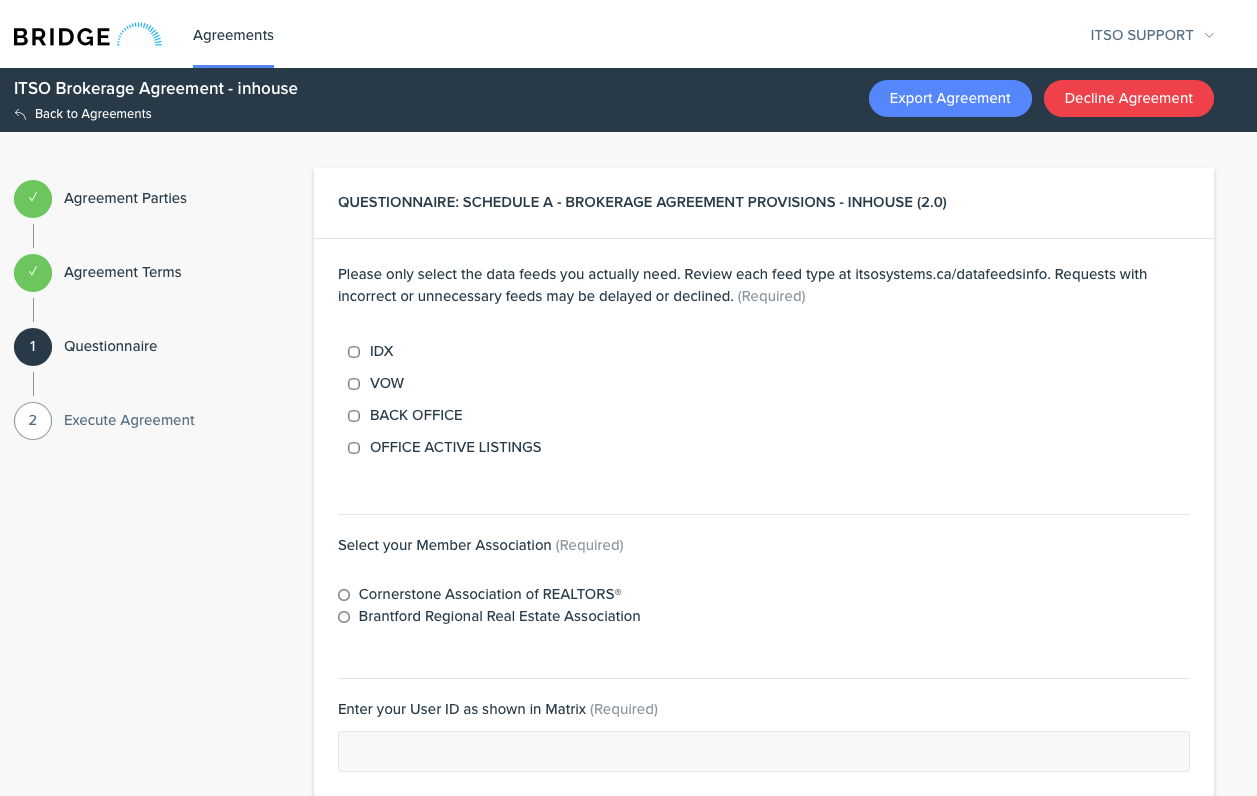
Complete the questionnaire
Select only the feed types your project genuinely requires — over-selecting can delay review and approval. Fill in all required fields completely and accurately. For the technical contact fields, provide the name and email of the person who will be directly handling the API data and integration — this should be your best technical point of contact if ITSO needs to reach out.
Execute the agreement
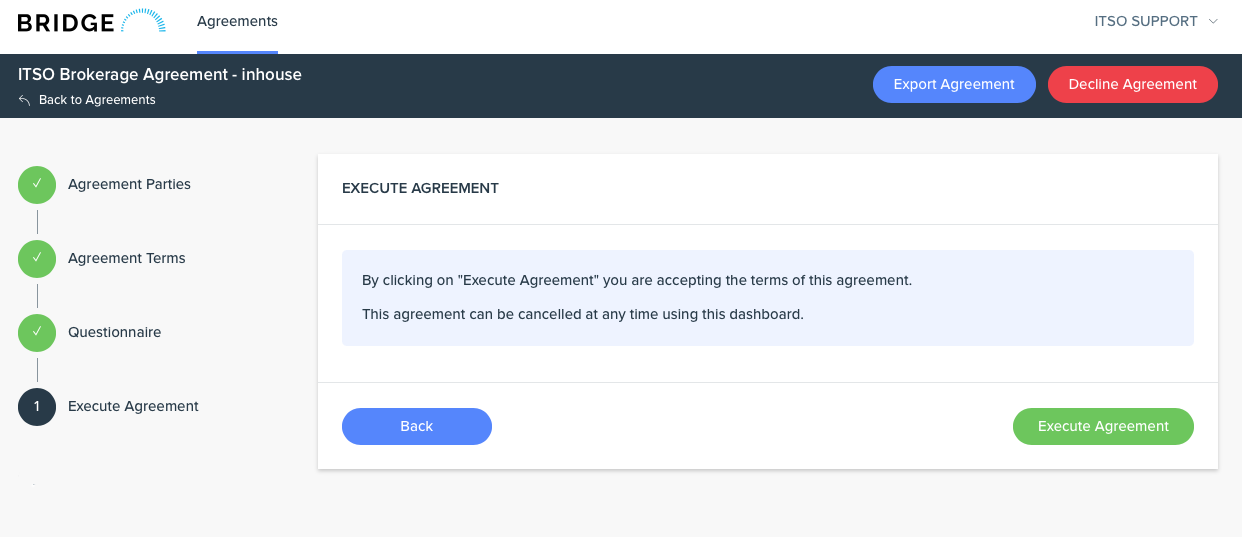
Click Execute Agreement to record your acceptance and submit to ITSO for counter-signature. The agreement can be cancelled later via the dashboard. Once ITSO approves, the status updates to Agreed and you'll receive a confirmation email.
Create your API application
After submitting the agreement, return to the main Bridge dashboard by clicking Bridge at the top left of the screen. From there you will see the option to create your API Application. If you already have an existing application, it will appear at the top right of the screen next to your name — clicking it will allow you to create a separate application under the same account.

Fill in your API application details
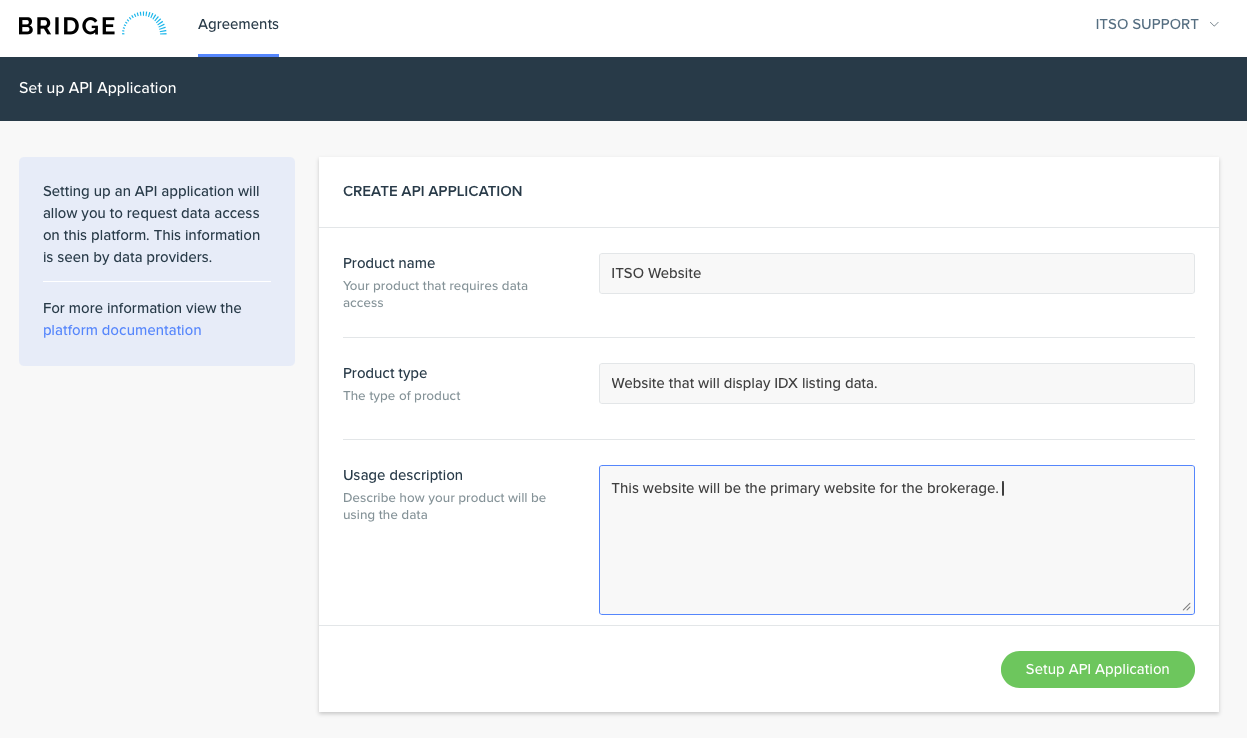
Enter a Product name, Product type, and Usage description. This information is visible to data providers and should accurately describe your project. All three fields must be completed before the Setup API Application button activates.
Request access to the ITSO dataset
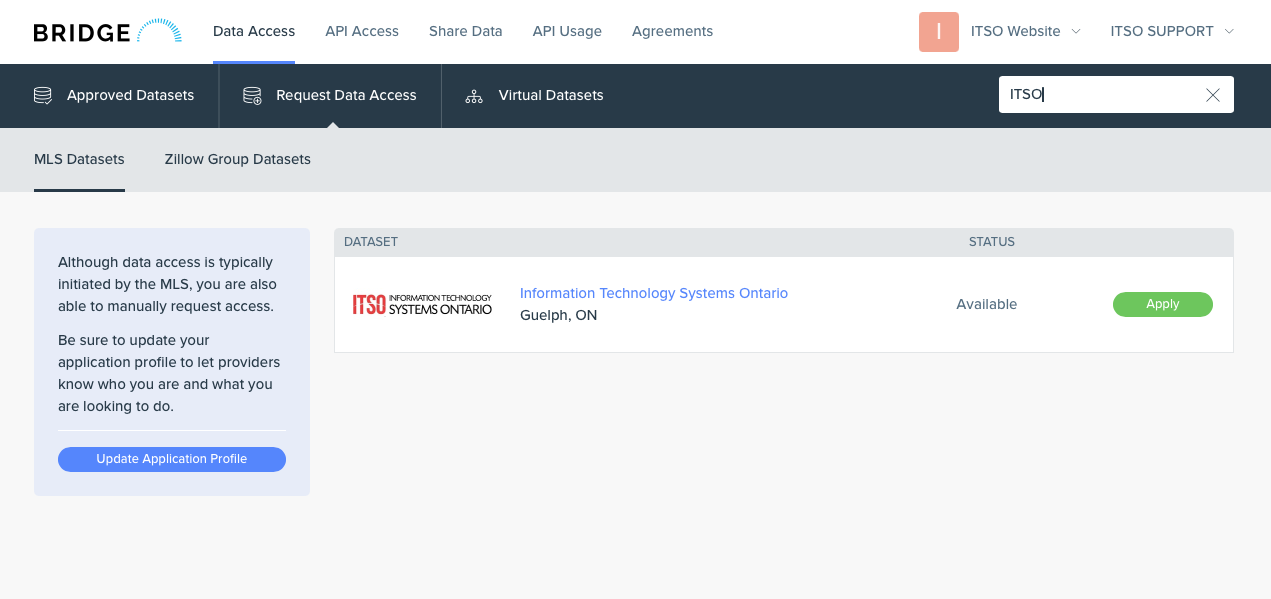
With your application configured, navigate to Data Access > Request Data Access. You'll see a list of available datasets — these represent other organizations and MLSs that also use the Bridge platform. Use the search bar at the top left to find ITSO, locate Information Technology Systems Ontario, and click Apply. If you need to update your application profile at this point, click Update Application Profile on the left before applying.
Retrieve your API credentials
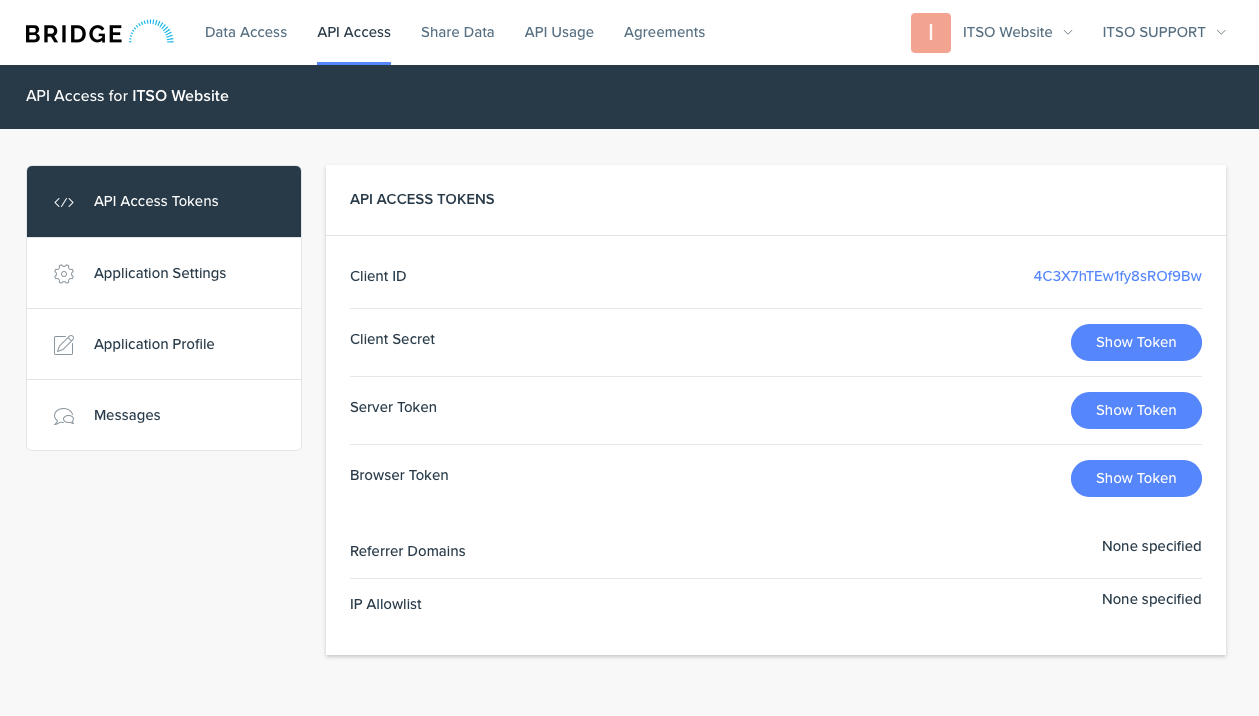
Once both your agreement and data access request have been approved, navigate to the API Access tab to retrieve your credentials. Your Client ID is displayed directly. Click Show Token to reveal your Client Secret, Server Token, and Browser Token. These credentials provide direct access to the live data feed and must be treated as strictly confidential — do not share them with anyone outside of your internal IT team or the technical contact named in your data feed agreement.
Review agreement status at any time
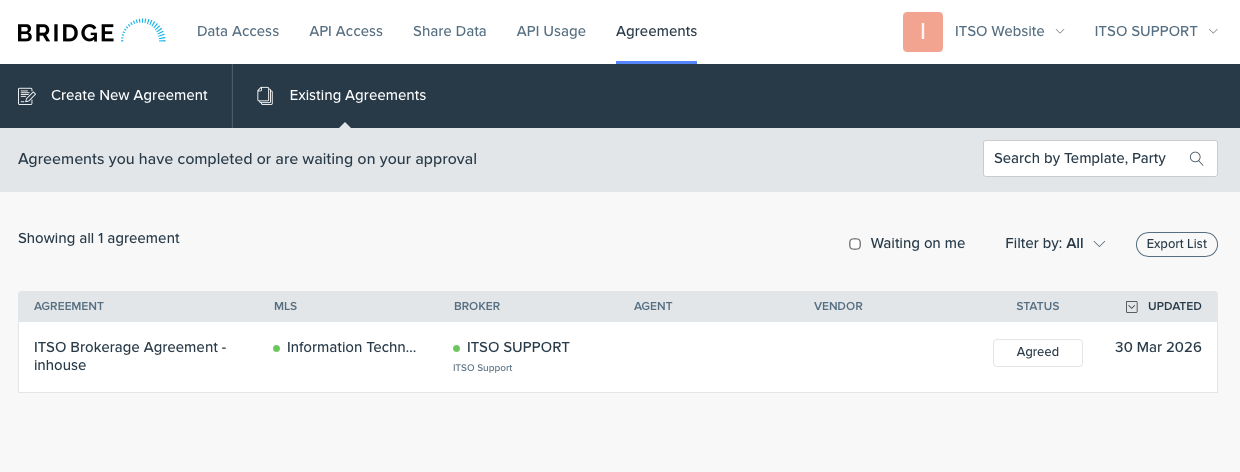
Go to Agreements > Existing Agreements to see all agreements and their current status. Agreed means all parties have executed. Agreements awaiting another party will show their pending state here.
Accept the Bridge Terms of Use
The first time you open Bridge Agreement Manager, you'll be prompted to review and accept the Bridge Terms of Use before you can do anything else. Read through them and click Accept to continue. Already done this? Skip ahead to Step 2.
Create a new agreement or review existing ones
From the Agreements dashboard, click Create new agreement to begin. Use View existing agreements to check anything already in progress or waiting on your action.
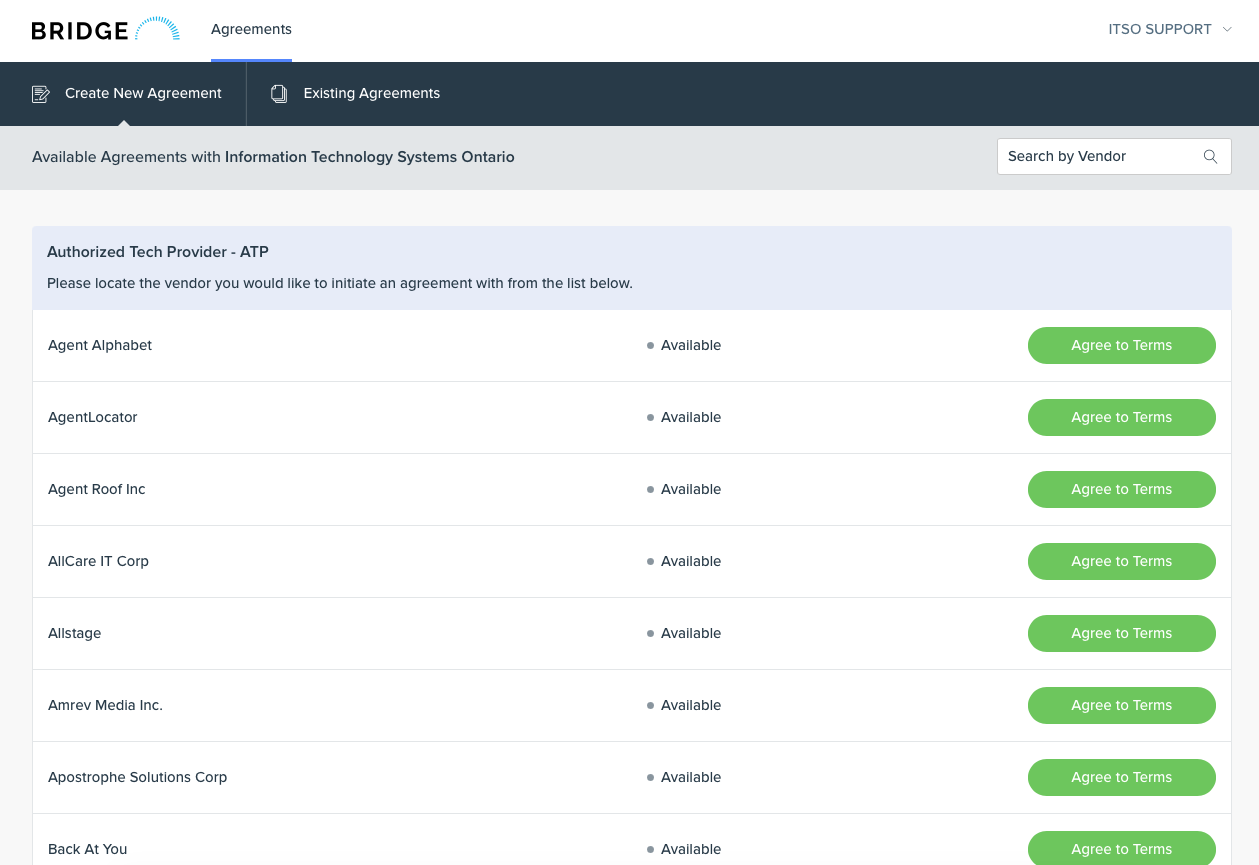
Find your ATP and agree to terms
Bridge shows a searchable list of all Authorized Technology Providers that have an existing agreement with ITSO. Locate your provider and click Agree to Terms next to their name. If your provider is not listed, stop — they must contact ITSO first to get added before you can proceed.
Review the parties and agree to terms
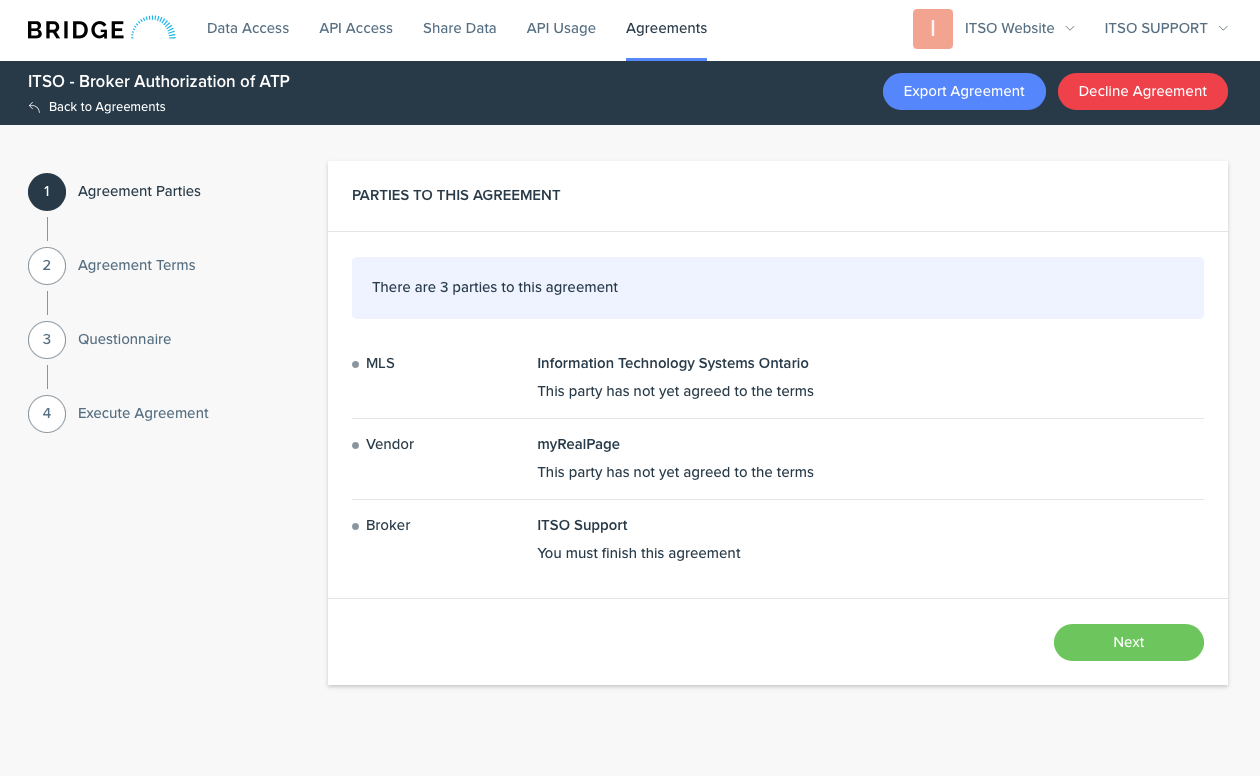
The wizard shows three parties: the MLS® (Information Technology Systems Ontario), the selected ATP (Vendor), and the Broker (you). Confirm the correct ATP is listed before proceeding. After reviewing, Step 2 presents the full agreement terms divided into sections — for each section, click Agree to Terms and check the required checkbox. Next only activates once all checkboxes are selected.
Complete the questionnaire
Before filling this in, check with your ATP to confirm exactly which feed types they need. Select only what they have confirmed — do not select feeds they haven't requested, as over-selecting can delay the review and approval process. Choose your Member Association and enter your Matrix User ID.
Execute the agreement
Click Execute Agreement to record your acceptance. Bridge then forwards the agreement to the ATP and ITSO to complete their portions. You'll receive an email each time one of the other parties agrees — so you can track progress without having to log back in. Your role in the agreement process is complete at this point.
ATP and ITSO complete their portions
After you execute, Bridge notifies the ATP to complete their section. Once the ATP is done, ITSO reviews and finalizes the agreement. The ATP is responsible for the technical integration and API setup on their end — you do not need to take any further action unless Bridge flags something as waiting on you.
Review agreement status at any time
Go to Agreements > Existing Agreements to track progress. A status of Agreed means all parties have executed their sections. If the agreement is still waiting on the ATP or ITSO, the status will reflect that here.
Know which feed
you need
Each feed type serves a different purpose. Select the one that matches how the data will be used.
| Feed type | What it does | Fee |
|---|---|---|
| VOW Virtual Office Website |
Enables brokerages to offer consumers a password-protected online service equivalent to the in-office experience. Includes Active, Conditional, Pending, Closed, Expired, Cancelled, and Suspended listings, plus two years of sold prices and co-operating commission data. | $1,500 + HST annually |
| IDX Internet Data Exchange |
Advertise listings from the ITSO platform publicly on your website without requiring consumers to log in. Contains advertising-level data for Active listings from all participating brokerages, available for privately hosted sites or through an Authorized Technology Provider. | No fee |
| CFW Consumer Facing Website |
Advertising-level Active listing data distributed to non-brokerage consumer platforms, including national franchisor sites, economic development portals, and similar destinations. Listing inclusion requires consent from the Listing Brokerage or Member Association. | No fee |
| Brokerage Brokerage Feed |
Display your office's active listings on your brokerage website, or power internal back-office tools such as accounting software. Back-office feed data is for internal use only and may not be published or shared publicly. | No fee |
Choose the right
agreement type
There are four different agreement paths. Selecting the wrong one creates extra work and can force a restart.
| Agreement type | Use it when | Key notes |
|---|---|---|
| Broker Authorization of ATP | A third-party technology provider is operating the website or application on the brokerage's behalf and will be handling the API credentials directly. The ATP is included as a named party in the agreement alongside the Broker and ITSO. | The ATP must already be listed in Bridge. If not, direct the provider to contact ITSO before proceeding. |
| Brokerage Agreement – In-House | The solution is built and managed internally — typically by a dedicated IT team within the brokerage. API credentials are issued directly to the Broker account and handled by internal staff rather than an outside vendor. | After full execution, create an API application in Bridge to generate your credentials. |
| Consumer Facing Website (CFW) Brokerage Authorization | You are authorizing a consumer-facing destination such as a franchise website or another approved consumer site. | A separate list exists for municipal consumer-facing websites. |
| Back Office ATP Agreement | A third-party provider needs listing content for internal operational use such as accounting or management software. | Keep this separate from a public website request so the use of the feed remains clear. |
Read this before you start
▼- Your Broker of Record must have already logged in to Bridge and accepted the terms, or your request cannot proceed.
- The vendor you use must already appear in the ATP list inside Bridge.
- If you request a VOW feed, the brokerage is responsible for the annual fee of $1,500 + HST.
- If any party declines the agreement, it cannot be reopened.
What this
guide covers
The REALTOR® workflow in Bridge is the ATP workflow. If your request does not involve an approved third-party technology provider, your brokerage may need a different agreement type.
Before you
begin
Gather the information Bridge will ask for so you can finish the request in one pass.
- Your Broker of Record or managing broker has activated Bridge for the office.
- Your technology provider is already listed in Bridge as an ATP.
- You know the website URL and the application or platform name, if applicable.
- You know which feed type or types you need before starting the questionnaire.
- You have already spoken with your brokerage if there is any chance you need VOW access.
- Do not submit the request with an incomplete questionnaire.
- Do not assume the brokerage will approve a VOW request after the fact.
- Do not start over with a new vendor name if your ATP is missing from the list.
- Do not decline an agreement casually. A declined agreement must be recreated from scratch.
Choose the right
feed type
You can list more than one feed type in the first questionnaire answer. This usually removes the need for separate agreements on the same project.
Internet Data Exchange
Usually the standard choice for a public property search or listing display on your website.
Office Active
Useful when your brokerage wants its own active listings represented clearly. If your brokerage is opted out of IDX, you may want both IDX and Office Active.
Virtual Office Website
Includes two years of sold and off-market listing data. Most likely to require an internal brokerage discussion before you submit.
Back Office
Usually tied to internal office operations rather than a consumer-facing website. Confirm with your broker whether this should be handled at the brokerage level.
Full request
workflow
This sequence keeps the process clean and avoids the most common reasons requests get delayed or declined.
Confirm that the office is enabled in Bridge
Verify that the Broker of Record or managing broker has already logged in and accepted the Bridge terms. If not, you will see an error and cannot continue.
Gather the exact details for the request
Have the vendor name, website URL, embedded application name if relevant, and the feed types you want ready before entering Bridge. The request is faster to complete when you already know the full scope.
Open Bridge from itsorealestate.ca
Log in to itsorealestate.ca and select Bridge Agreements from the Applications section to enter the Bridge dashboard.
Start a new agreement and choose your ATP
Use Create a New Agreement. Bridge will present the list of ATPs that already have agreements in place with ITSO. Select the correct provider and click Agree to Terms.
- If your ATP is not listed, stop and ask the vendor to contact ITSO first.
- If you are not using an ATP, do not continue with this workflow. Ask your broker which agreement type should be used instead.
Accept the agreement terms correctly
On the terms screen, select the required checkbox at the bottom and click Next. If the checkbox is not selected, the button will not activate.
Complete the questionnaire accurately
This is the most important part of the request. Incomplete or inaccurate answers can leave the agreement in waiting status or cause another party to decline it.
- In the first answer, list every feed type you need now.
- You usually do not need separate agreements for multiple feed types on the same project.
- Enter the website URL and any embedded app or platform details clearly.
- Discuss VOW with your brokerage before selecting it because it carries a brokerage fee obligation.
Execute your section of the agreement
Click Next, review the summary screen, then click Execute Agreement. This saves your answers and sends the workflow forward to the other required parties.
Monitor the agreement status
Use View Existing Agreements or the Existing Agreements tab to track progress. Use Waiting on me if Bridge needs another action from you.
Edit or restart only when necessary
If you are the requesting party, you can edit and update your answers even after completing your section. Bridge will notify all interested parties. Only decline if you are certain, because the agreement cannot be reopened afterward.
Fee & approval
note for VOW
This is the biggest point of confusion and the one most likely to create an avoidable decline.
Common problems
& what to do
Use these quick checks before you assume Bridge is not working.
Technology Partner
Guide
This section is under development. Please contact ITSO directly for Technology Partner data access enquiries.